


GotCashback Browser Extension
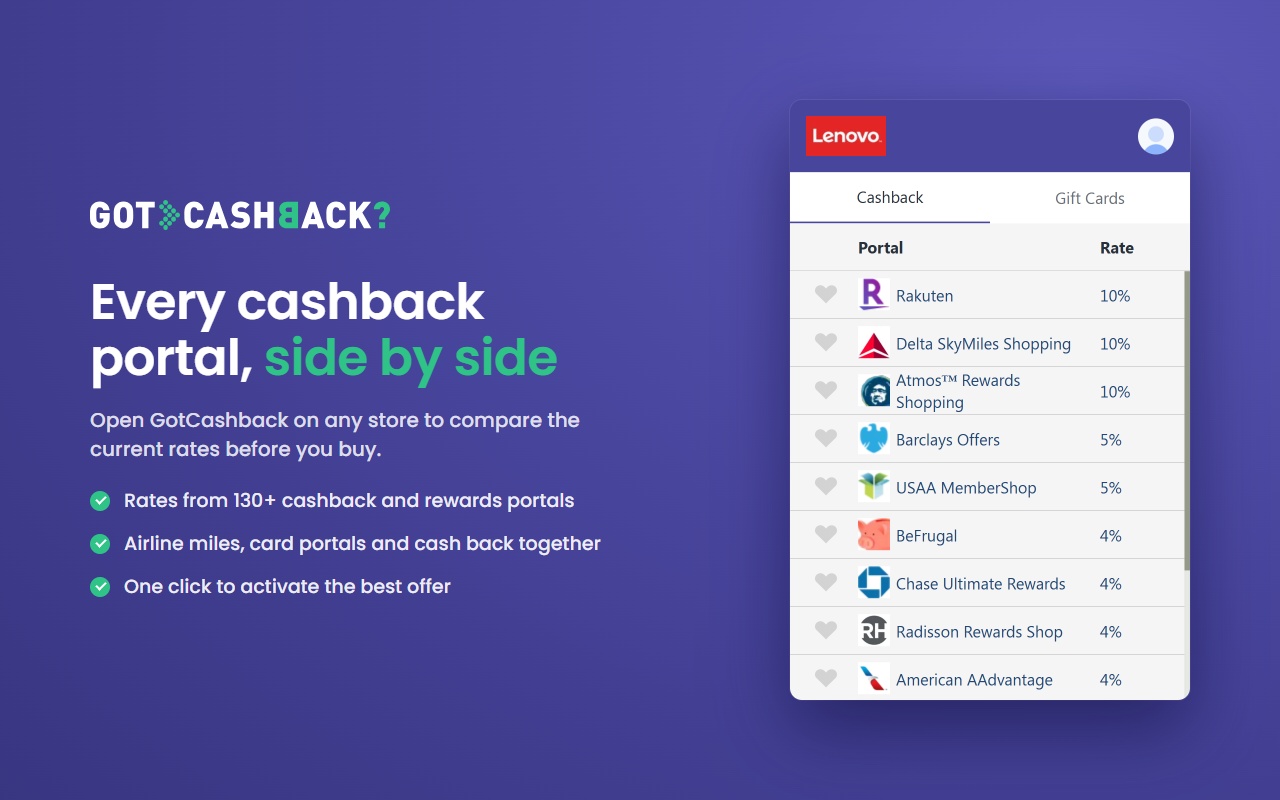
See which cashback portal pays the most, and who sells the store's gift cards at a discount, on the store you are visiting. Free for Chrome and Firefox.
Using Edge, Brave, Opera or another Chrome-compatible browser? Install the Chrome version from the Chrome Web Store.
How it works
Shop as you normally do
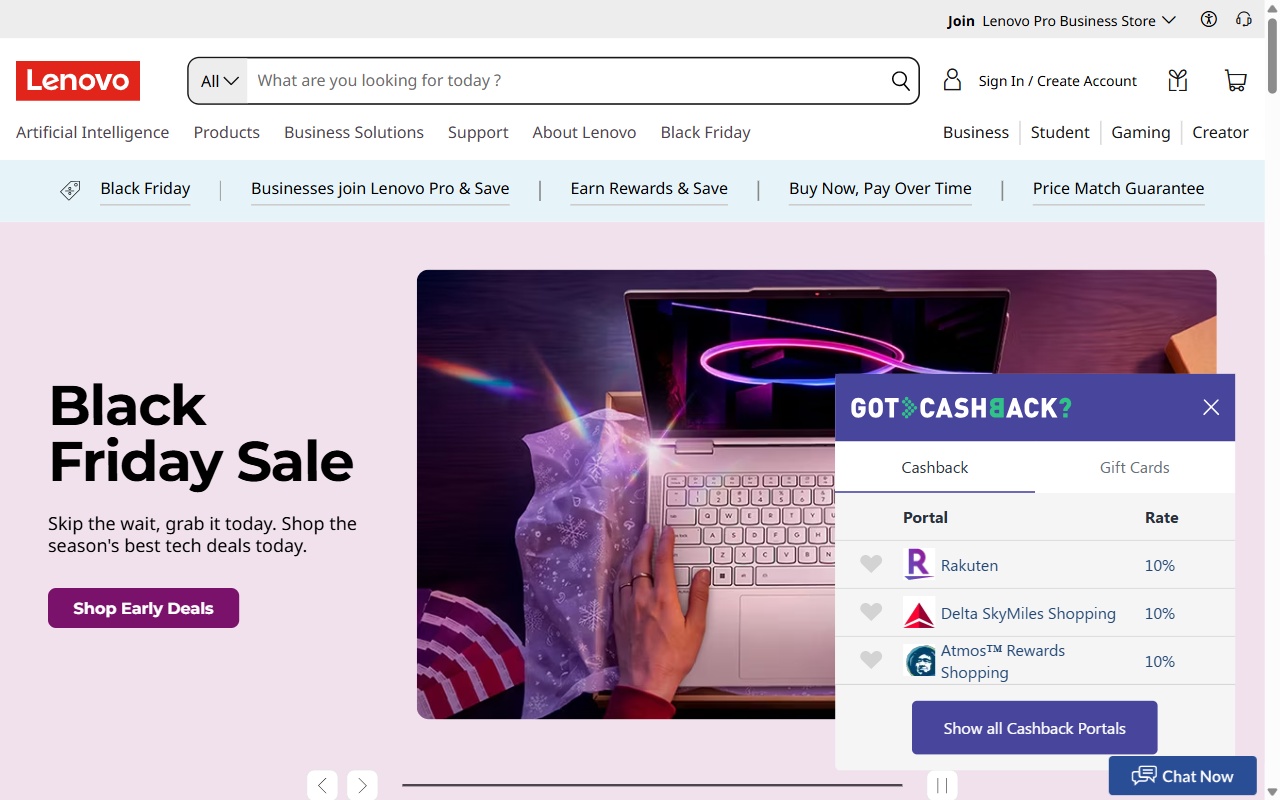
When you open a store we cover, a GotCashback panel appears in the bottom-right corner of the page with the cashback portals that pay the most for that store.
Pick the best rate
Click a portal in the panel to open it, or choose “Show all cashback portals” to compare every rate for the store on GotCashback.
Check the gift cards too
Switch to the “Gift Cards” tab of the panel to see who sells that store's gift cards at a discount.
Spot cashback in search results
On Google, Bing and Yahoo, a GotCashback logo marks the stores we have rates for. Click it to open the store on GotCashback. You can switch this off in the extension's Settings.
Open the extension any time
Click the GotCashback icon in your browser toolbar for the top cashback stores, the best gift card stores and the rates for the store you are on. Pin the extension to keep the icon in view.
Get started
- Add the extension to your browser.
- Sign in to your GotCashback account. The extension shows rates only when you are signed in, and an account is free.
- Shop as you normally do. The GotCashback panel appears when a store has cashback or gift card offers.
Using Edge, Brave, Opera or another Chrome-compatible browser? Install the Chrome version from the Chrome Web Store.
Frequently asked questions
Is the GotCashback extension free?
Yes. The extension and a GotCashback account are both free. GotCashback is a comparison service: the cashback is paid by the portal you choose, not by GotCashback.
Which browsers does it work in?
Chrome and Firefox on a computer. The Chrome version also installs in Edge, Brave, Opera and other browsers that accept Chrome Web Store extensions.
Why do I need to sign in?
The extension shows rates only to signed-in GotCashback users, and it uses your account for your favorite stores and your country. Sign in on the GotCashback website and the extension picks it up.
What does the extension know about my browsing?
The address of each page you open is checked on your own device against the list of stores we cover. Only when the site is one of those stores does the extension ask GotCashback for that store's rates, and that request names the store, not the page you are on. Pages on other sites are not sent anywhere. The extension contains no analytics and contacts no third-party service.
Which countries does it cover?
Every country GotCashback covers. The extension uses the country of your GotCashback account, or your location when your account has none, and shows the rates of that country's portals.
Can I turn off the badges in search results?
Yes. Open the extension, go to Settings and switch off “Search results badges”.
Does the extension activate the cashback for me?
No. It shows the rates and opens the portal you pick. You activate the cashback on that portal, the same way as from the GotCashback website.